Tutorial : SDDS
This tutorial shows some basic functionality of the SDDS class.
[1]:
import pandas as pd
import numpy as np
import inspect

from pyelegantsdds.sdds import SDDS
[2]:
%load_ext autoreload
%autoreload 2
[3]:
# Path to Pelegant singularity container
sif = "PATH_TO_SIF_PELEGANT:"
[4]:
# filetype is either 0 for binary or 1 for ascii
sdds = SDDS(sif,'temp.sdds',0)
Overview - Properties
[5]:
sdds.__dict__
[5]:
{'sif': '/home/mti/gitlab-hzb/containers/bin/pelegant.sif',
 '_filetype': 0,
 '_filename': 'temp.sdds',
 'columnlist': None,
 'parameterlist': None,
 'commandlist': [],
 'command_history': {},
 '_count_iter': count(0)}
Overview - Methods
[6]:
from types import FunctionType
[x for x, y in SDDS.__dict__.items() if (type(y) == FunctionType) and not x.startswith('_')]
[6]:
['addCommand',
 'clearCommandList',
 'clearHistory',
 'runCommand',
 'printHistory',
 'reload_from_history',
 'rerun_from_history',
 'load_raw_data',
 'convert',
 'getColumnList',
 'getColumnValues',
 'getParameterList',
 'getParameterValues',
 'readParticleData',
 'process_scan',
 'sddsplot_tunediagram',
 'sddsplot_base',
 'sddsplot',
 'sddsplot_fma',
 'generate_scan_dataset']
Commands
Print the command history.
[7]:
sdds.printHistory()
History is empty.
Add a command.
[8]:
sdds.addCommand('sddsquery',columnList=None,file=sdds.filename)
Check if the command has been added.
[9]:
sdds.commandlist
[9]:
['/home/mti/gitlab-hzb/containers/bin/pelegant.sif sddsquery -columnList temp.sdds']
Note that this command has not been added to the history yet, this is to allow the removal of the current commandlist without clogging the history.
[10]:
sdds.printHistory()
History is empty.
Clear the command list. The option save allows to select if the current command list has to be written to the history.
[11]:
sdds.clearCommandList(save=True)
sdds.printHistory()
History key: 0

---------------

/home/mti/gitlab-hzb/containers/bin/pelegant.sif sddsquery -columnList temp.sdds
The command list has now been cleared.
[12]:
sdds.commandlist
[12]:
[]
One can reload commands from history.
[13]:
sdds.reload_from_history(history_idx=0)
[14]:
sdds.commandlist
[14]:
['/home/mti/gitlab-hzb/containers/bin/pelegant.sif sddsquery -columnList temp.sdds']
There is a related command that allows to directly rerun a command from history.
[15]:
sdds.rerun_from_history(history_idx=0)
Executing :
/home/mti/gitlab-hzb/containers/bin/pelegant.sif sddsquery -columnList temp.sdds
Running all the command in the current command list.
[16]:
sdds.runCommand()
No commands entered - nothing to do!
After running the command list is cleared and the command list has been written to the history.
[17]:
sdds.printHistory()
History key: 0

---------------

/home/mti/gitlab-hzb/containers/bin/pelegant.sif sddsquery -columnList temp.sdds


History key: 1

---------------

/home/mti/gitlab-hzb/containers/bin/pelegant.sif sddsquery -columnList temp.sdds


History key: 2

---------------

/home/mti/gitlab-hzb/containers/bin/pelegant.sif sddsquery -columnList temp.sdds


History key: 3

---------------

/home/mti/gitlab-hzb/containers/bin/pelegant.sif sddsquery -columnList temp.sdds
To load the raw content of the file into the class (raw_content) use:
[18]:
sdds.load_raw_data()
sdds.raw_content
[18]:
b'SDDS1\n!# little-endian\n&column name=Q1, type=double, &end\n&column name=Q2, type=double, &end\n&data mode=binary, &end\n\x02\x00\x00\x00V\x88\xbc\x83\x96j\xfc?\x86\xba\xd7\x14\x8eI\x02@\xa8@\xdb\x08\x82\xbc\xfc?\xae\x16g\xd7\x83r\x02@'
The command history can be cleared with:
[19]:
sdds.clearHistory()
[20]:
sdds.printHistory()
History is empty.
Template commands - files and data in files
Generic files
[21]:
sdds.convert(outfile=None)
Warning - auto filename set
Changed from temp.sdds to temp.sdds.txt
Warning - auto filetype set
Changed from 0 to 1
Notice that the filename and filetype have changed.
[22]:
sdds.filename, sdds.filetype
[22]:
('temp.sdds.txt', 1)
Get the column names available in the file (auto writes them to the columnlist property).
[23]:
sdds.getColumnList(), sdds.columnlist
[23]:
(['Q1', 'Q2'], ['Q1', 'Q2'])
Next one can get the column values. The method has a memory_threshold argument to deal with very large datasets. If the data is larger than the threshold the data is written to a file that can be loaded using dask in a lazy fashion and the filename is returned. If the dataset is small enough a pandas dataframe is returned.
[24]:
sdds.getColumnValues()
[24]:
| Q1 | Q2 | |
|---|---|---|
| 0 | 1.776022 | 2.285916 |
| 1 | 1.796022 | 2.305916 |
Similar to column data one can get the parameter data.
[25]:
sdds = SDDS(sif,'temp.aper',0)
[26]:
sdds.getParameterList()
[26]:
['Step', 'SVNVersion', 'Area']
[27]:
sdds.getParameterValues()
[27]:
ParameterName
Step    1.00000
Area    0.00052
Name: ParameterValue, dtype: float64
Generating datasets
The class includes a method to create a dataset from a dictionary to allow for the generation of input data for using the vary_element command in combination with a table of manually created input data.
[28]:
datasetdc = {
    "Q1" : [1.786022448154-0.01,1.786022448154+0.01],
    "Q2" : [2.295915530046-0.01,2.295915530046+0.01],

}

sdds = SDDS(sif,'temp.sdds',0)
sdds.generate_scan_dataset(datasetdc)
Check if the data is in the file.
[29]:
sdds.getColumnValues()
[29]:
| Q1 | Q2 | |
|---|---|---|
| 0 | 1.776022 | 2.285916 |
| 1 | 1.796022 | 2.305916 |
Explicit check of the dataset file.
[30]:
# convert to ascii to read easily using Python
sdds.convert()
Warning - auto filename set
Changed from temp.sdds to temp.sdds.txt
Warning - auto filetype set
Changed from 0 to 1
[31]:
with open(sdds.filename,'r') as f:
    dat = f.read()

print(dat)
SDDS1
&column name=Q1, type=double,  &end
&column name=Q2, type=double,  &end
&data mode=ascii, &end
! page number 1
                   2
 1.776022448154000e+00  2.285915530046000e+00
 1.796022448154000e+00  2.305915530046000e+00
Particle Tracking data
The readParticleData method allow to select the processing methods for datasets that are generated using the vary_element command and the datasets generated without it. The method uses also the process_scan method internally, but this last method can also be used manually for more flexible file manipulation.
[32]:
# wihtout vary_element
sdds = SDDS(sif,'temp-001.w1',0)
sdds.readParticleData()
Warning - auto filename set
Changed from temp-001.w1 to temp-001.w1.txt
Warning - auto filetype set
Changed from 0 to 1
[32]:
| x | xp | y | yp | t | p | dt | particleID | Turn | |
|---|---|---|---|---|---|---|---|---|---|
| 0 | 1.000000e-05 | 0.000000e+00 | 0.0 | 0.0 | 0.000000e+00 | 3326.816862 | 0.000000e+00 | 1 | 1 |
| 1 | 8.955780e-07 | -7.105001e-07 | 0.0 | 0.0 | 2.839631e-08 | 3326.816862 | 1.723844e-21 | 1 | 2 |
| 2 | -9.839588e-06 | -1.272616e-07 | 0.0 | 0.0 | 5.679263e-08 | 3326.816862 | 4.149138e-21 | 1 | 3 |
| 3 | -2.658002e-06 | 6.877055e-07 | 0.0 | 0.0 | 8.518894e-08 | 3326.816862 | 5.201312e-21 | 1 | 4 |
| 4 | 9.363498e-06 | 2.504404e-07 | 0.0 | 0.0 | 1.135853e-07 | 3326.816862 | 8.218867e-21 | 1 | 5 |
| ... | ... | ... | ... | ... | ... | ... | ... | ... | ... |
| 95 | -7.866553e-06 | -4.404272e-07 | 0.0 | 0.0 | 2.697650e-06 | 3326.816862 | 1.825356e-19 | 1 | 96 |
| 96 | -6.853626e-06 | 5.194750e-07 | 0.0 | 0.0 | 2.726046e-06 | 3326.816862 | 1.825356e-19 | 1 | 97 |
| 97 | 6.638962e-06 | 5.334732e-07 | 0.0 | 0.0 | 2.754442e-06 | 3326.816862 | 1.859237e-19 | 1 | 98 |
| 98 | 8.042768e-06 | -4.239216e-07 | 0.0 | 0.0 | 2.782839e-06 | 3326.816862 | 1.863472e-19 | 1 | 99 |
| 99 | -5.198377e-06 | -6.094042e-07 | 0.0 | 0.0 | 2.811235e-06 | 3326.816862 | 1.901589e-19 | 1 | 100 |
100 rows × 9 columns
[33]:
# with vary_element
sdds = SDDS(sif,'temp-001.wq',0)
sdds.readParticleData(vary=True)
Executing :
/home/mti/gitlab-hzb/containers/bin/pelegant.sif sddsprocess -define=column,step,Step temp-001.wq temp-001_processed.wq
Warning - auto filename set
Changed from temp-001.wq to temp-001_processed.wq
Warning - auto filename set
Changed from temp-001_processed.wq to temp-001_processed.wq.txt
Warning - auto filetype set
Changed from 0 to 1
[33]:
| x | xp | y | yp | t | p | dt | particleID | step | Turn | |
|---|---|---|---|---|---|---|---|---|---|---|
| 0 | 0.000000 | 0.000000 | 0.000000 | 0.000000 | 0.000000 | 1722.116751 | 0.000000e+00 | 1 | 1.0 | 1 |
| 1 | 0.000000 | 0.000000 | 0.000000 | 0.000000 | 0.000050 | 1722.116751 | 5.000000e-05 | 2 | 1.0 | 1 |
| 2 | 0.000000 | 0.000000 | 0.000000 | 0.000000 | 0.000100 | 1722.116751 | 1.000000e-04 | 3 | 1.0 | 1 |
| 3 | 0.000000 | 0.000000 | 0.000000 | 0.000050 | 0.000000 | 1722.116751 | 0.000000e+00 | 4 | 1.0 | 1 |
| 4 | 0.000000 | 0.000000 | 0.000000 | 0.000050 | 0.000050 | 1722.116751 | 5.000000e-05 | 5 | 1.0 | 1 |
| ... | ... | ... | ... | ... | ... | ... | ... | ... | ... | ... |
| 7771 | -0.000213 | -0.000033 | 0.000214 | 0.000047 | 0.000052 | 1722.116751 | 5.000000e-05 | 239 | 2.0 | 16 |
| 7772 | -0.000213 | -0.000033 | 0.000214 | 0.000047 | 0.000102 | 1722.116751 | 1.000000e-04 | 240 | 2.0 | 16 |
| 7773 | -0.000214 | -0.000033 | 0.000335 | 0.000095 | 0.000002 | 1722.116751 | 8.013319e-14 | 241 | 2.0 | 16 |
| 7774 | -0.000214 | -0.000033 | 0.000335 | 0.000095 | 0.000052 | 1722.116751 | 5.000000e-05 | 242 | 2.0 | 16 |
| 7775 | -0.000214 | -0.000033 | 0.000335 | 0.000095 | 0.000102 | 1722.116751 | 1.000000e-04 | 243 | 2.0 | 16 |
7776 rows × 10 columns
Plotting commands
For more details on the tracking simulations see the tutorial on tracking.
[34]:
from pyelegantsdds.elegantrun import ElegantRun

# set lattice for the rest of the tutorial
lattice = "FODO.lte"

# run single particle tracking
er = ElegantRun(sif,lattice, parallel=True, use_beamline="FODO", energy=1700.00)
er.simple_single_particle_track(n_passes=100, coord=np.array([1e-5,0,0,0,0]))
Shape: (1, 6) - Number of paritcles: 1
Running command /home/mti/gitlab-hzb/containers/bin/pelegant.sif plaindata2sdds temp_plain_particles.dat temp_particles_input.bin -inputMode=ascii -outputMode=binary "-separator=  " -column=x,double,units=m -column=xp,double -column=y,double,units=m -column=yp,double -column=t,double,units=s -column=p,double,units="m$be$nc" -columns=particleID,long -noRowCount
The command below can be used to make a quick plot using the sddsplot_base command. If the device and output argument are not provided the output will be the standard sddsplot figure, otherwise the plot is saved to file and can be used further.
[35]:
# quick plot
sdds = SDDS(sif,"temp-001.w1",0)

sdds.sddsplot_base(
    columnNames="x,xp",
    graph="symb,vary=subtype,fill",
    device='png',
    output="FODO_single_particle.png"
)
Running command /home/mti/gitlab-hzb/containers/bin/pelegant.sif sddsplot temp-001.w1 -columnNames=x,xp -graph=symb,vary=subtype,fill -device=png -output=FODO_single_particle.png
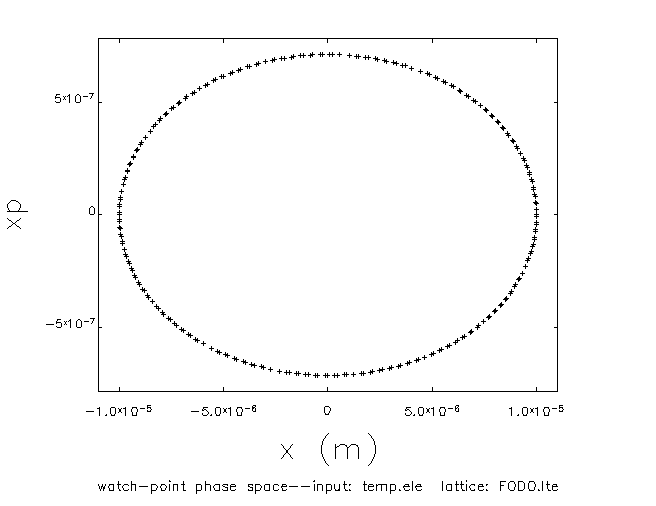
More advanced sddsplot methods are available - for more details see the tracking tutorial.